For small offices · Windows & Mac
See your office at work — live, or any time in the last 15 days
LiveDesk records the screens of your team's work computers during work hours, openly. Watch your team's screens live from your browser, look back at the last 15 days, and know that every recording deletes itself after 15 days.
- Employees accept a notice first
- Screen only — no audio, no keystrokes
- Deleted automatically after 15 days
What LiveDesk does
One simple dashboard for the people who work on your office computers.
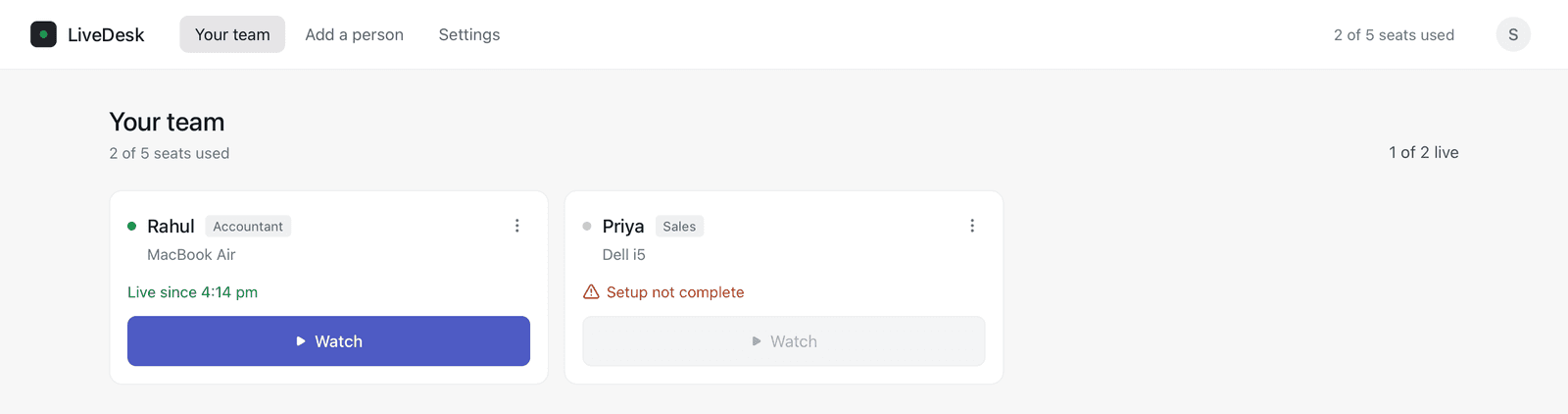
See who is working
Every person's computer shows as live, paused, off duty or offline, updated as it changes.
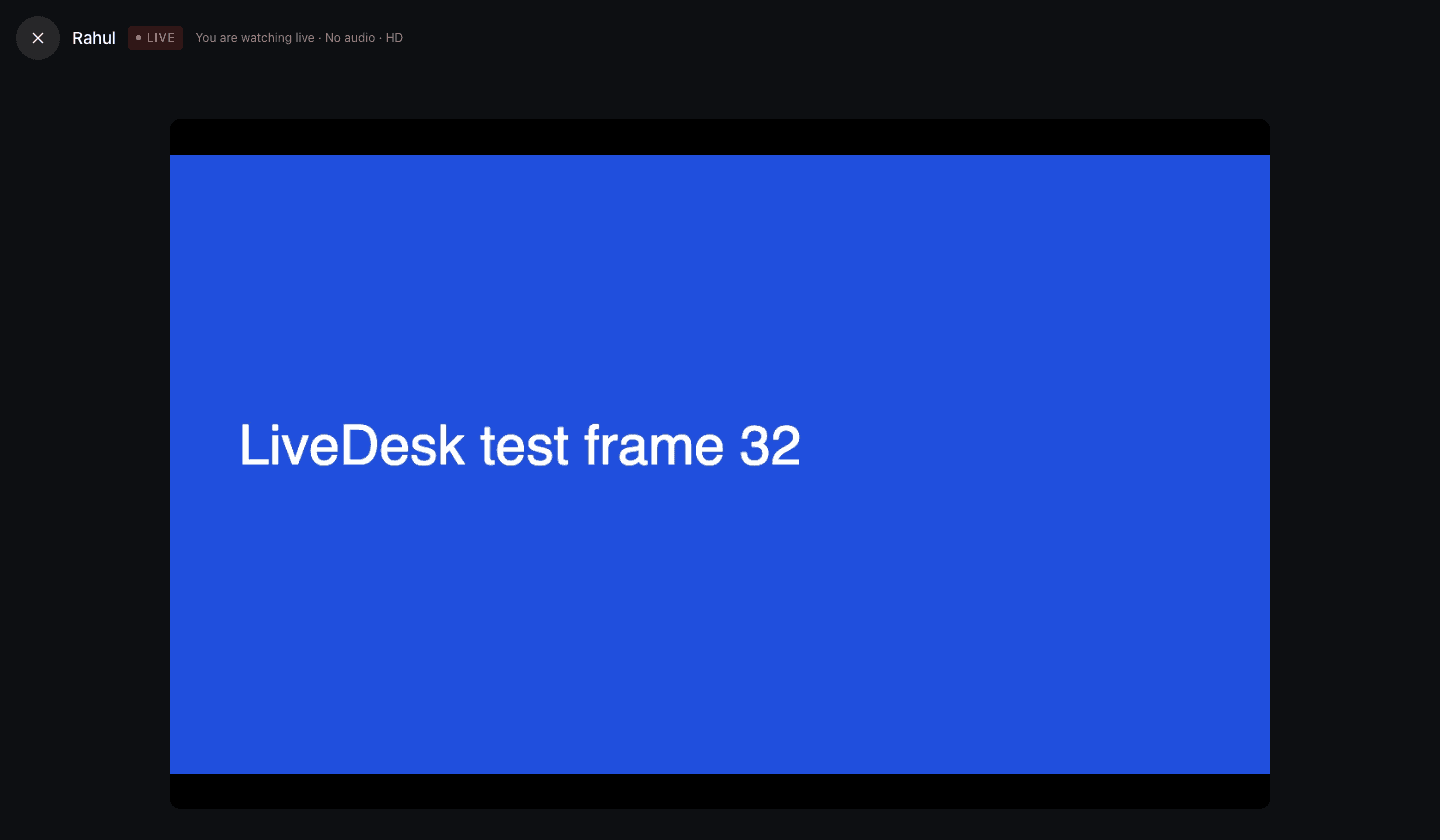
Watch live
Press Watch to see a computer's screen live. Employees accept a notice that says live viewing can happen at any time; you can also turn on an on-screen alert each time someone watches.
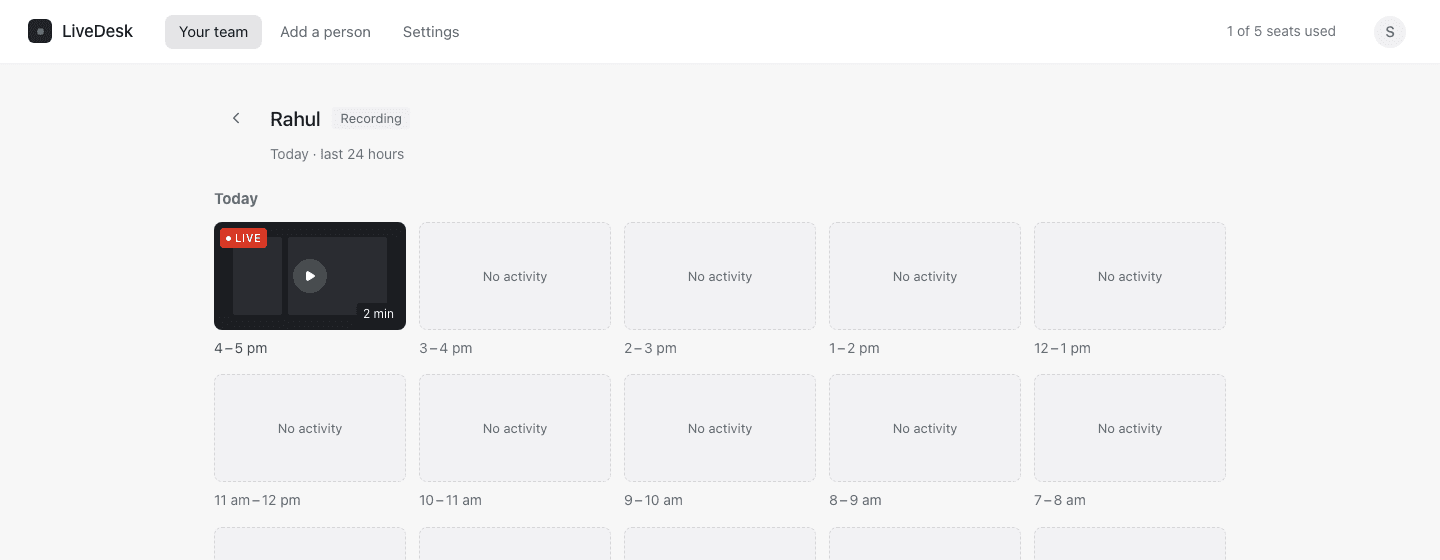
Last 15 days
Pick a day, open any hour and play it back, with active and idle time marked on the timeline.
Screenshots
A screenshot of the main screen about every 5 minutes, to skim an hour at a glance.
How it works
From sign-up to your first live view in five steps. Nobody is recorded until they have accepted the notice on their own computer.
Create your office
Sign up with your email and name your office. Set your work hours once.
Add a person
Enter their name and role. LiveDesk gives you a one-time setup code and an install link.
They install LiveDesk
On their Windows or Mac computer, they install the app and enter the code.
They read and accept the notice
The employee sees exactly what is recorded, when, and for how long, before anything starts.
Watch live or look back
Approve them, then watch their screen live or open any hour from the last 15 days.
Recording your team, openly
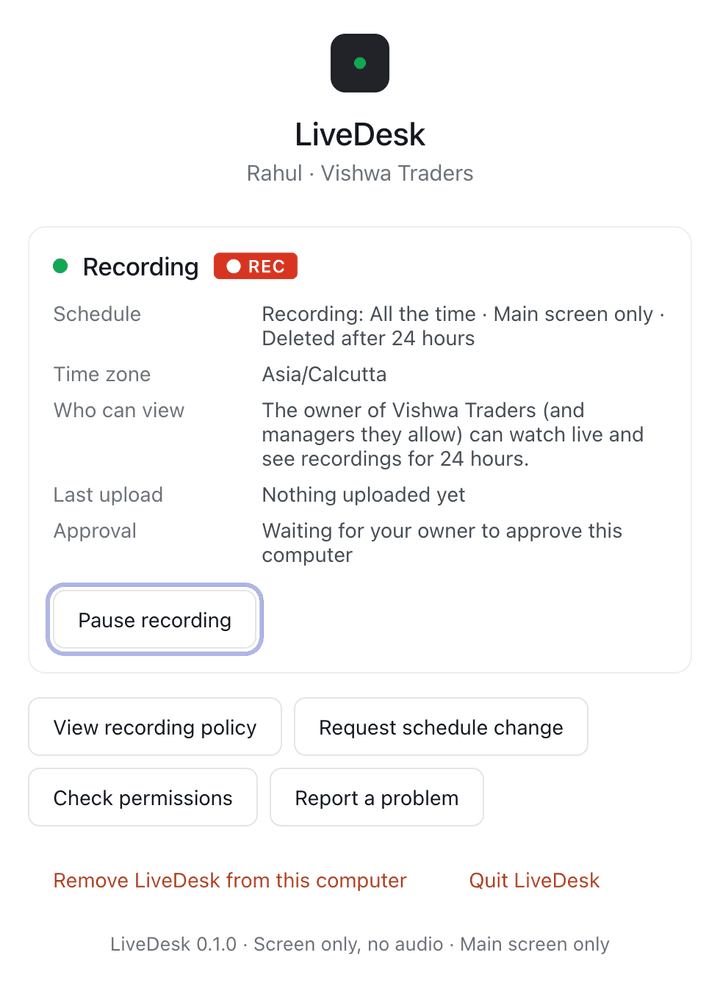
These lines are quoted from the notice every employee reads and accepts before recording starts.
What is captured
- Video of your main screen only, at low frame rate (about 5 frames per second).
- A screenshot of your main screen about every 5 minutes while recording.
- Whether the computer is active, idle, paused or offline (from the operating system's idle timer).
What is NOT captured
no microphone or other audio, no webcam, no keystrokes or typed text, no clipboard, no browser history, no files, no location. LiveDesk cannot control your computer.
How long it is kept
recordings and screenshots are deleted automatically 15 days after they were captured.
Source: the LiveDesk employee recording notice.
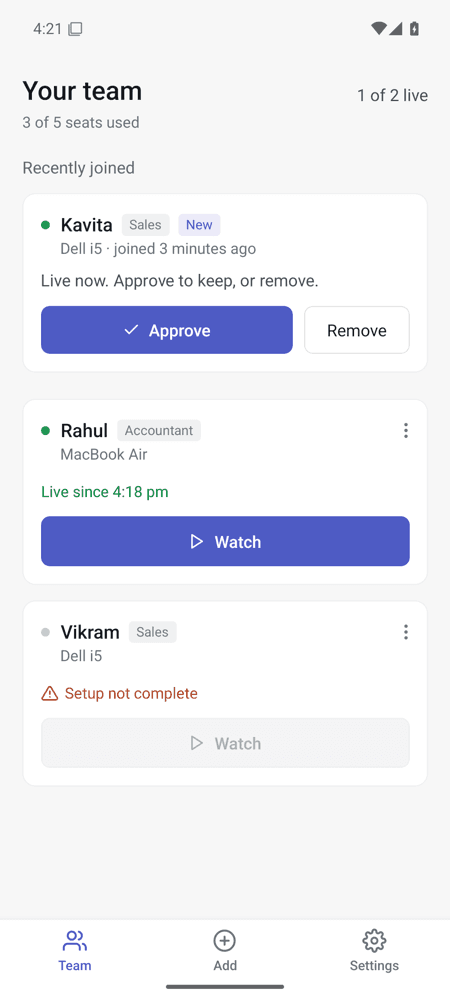
Your office, on your phone
Native Android and iOS apps are in development and are not in the app stores yet. Today, the full dashboard — team, live view, recordings and settings — works in your phone's browser.
Supported computers
LiveDesk runs on Windows and Mac work computers that meet these requirements.
Windows
- Windows 10 or Windows 11
- 64-bit (x64)
- Internet connection while recording
Mac
- macOS 13 Ventura or later
- Apple silicon or Intel
- Screen Recording permission, allowed by the employee in System Settings
Your dashboard
- A current version of Chrome, Edge, Safari or Firefox
- Works on computers and phones
- Not supported: Linux, ChromeOS, tablets as recorded computers
Simple monthly pricing
Pick a plan by how many people you want to add. Plans start at ₹1,499 a month.
Up to 5 people
₹1,499 / month
For up to 5 people
- Live view of each computer
- Recordings of the last 15 days
- Screenshots about every 5 minutes
- Windows and Mac computers
Up to 10 people
₹2,199 / month
For up to 10 people
- Live view of each computer
- Recordings of the last 15 days
- Screenshots about every 5 minutes
- Windows and Mac computers
Up to 20 people
₹2,999 / month
For up to 20 people
- Live view of each computer
- Recordings of the last 15 days
- Screenshots about every 5 minutes
- Windows and Mac computers
Prices exclude GST if applicable. Billed monthly in Indian rupees. Every plan includes the same features; plans differ only in how many people you can add.
Questions
What does LiveDesk record?
Video of each enrolled computer's main screen only, at about 5 frames per second, plus a screenshot about every 5 minutes and whether the computer is active, idle, paused or offline. There is no microphone or other audio, no webcam, no keystrokes or typed text, no clipboard, no browser history, no files and no location.
How long are recordings kept?
Recordings and screenshots are deleted automatically 15 days after they were captured. The limit is enforced by the database itself and cannot be raised above 15 days. When you remove a person, their recordings are deleted straight away.
Do employees know they are being recorded?
Yes. Before anything is recorded, each employee reads the recording notice on their computer and accepts it. The LiveDesk icon always shows when recording is on. The notice says the office may watch the screen live at any time, without a separate alert each time; an office can turn on an on-screen alert ("Your screen is being viewed") in its settings.
When does recording happen?
Only during the recording hours set for that person and approved by the office. Recording stops when the computer is locked, asleep, paused, or outside those hours.
Which computers are supported?
Windows 10 or 11 (64-bit) and macOS 13 Ventura or later. On a Mac, the employee also has to allow screen recording in System Settings. Linux and Chromebooks are not supported.
How much does it cost?
Plans are priced by the number of people you add: up to 5, up to 10 or up to 20 people, billed monthly in Indian rupees. Prices exclude GST if applicable. See the pricing page for current prices.
LiveDesk staff can't see your recordings
Our internal tools show account and system health only. Recordings, screenshots and live views are available only to your office, and every view is logged.
Set up your office in a few minutes
Create your account, add your first person, and share the install link.